
How to create a product that uses a generic (dynamic) child variant custom field. In this setup the parent product is not orderable: shoppers must pick a child (for example a colour) before they can buy. That is the usual pattern for T‑shirts and similar catalogue items.
Demo: Product with child variant (parent not orderable) on demo.virtuemart.net
Example: you sell T‑shirts in different colours. Each colour is a child product and can have its own image, description, stock and price. The parent is only the shared “shell” (name, category, shared text) and the dropdown that points at the children.
Related reading (why this stays fast): Under the hood of children and multi variants · for a full combination matrix (many dimensions at once) see Multivariants.
Create the custom field
1. Go to Products > Custom Fields and click New.
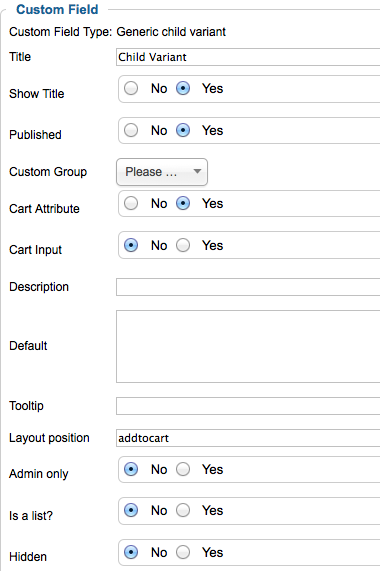
- Custom field type: select Generic child variant (plugin / cart child selector). Older screenshots may still show a “String”-style admin form; use the type that builds a parent/child dropdown for the cart.
- Title: e.g. Cart Variant (or Colour)
- Show title: Yes
- Published: Yes
- Custom group: none (default)
- Cart Attribute: Yes (required so the choice is stored on the cart line)
- Cart Input: No
- Description: optional
- Layout position:
addtocart - Admin only: No
- Is a list: No
- Hidden: No
Make sure Cart Attribute is set to Yes.
Create the parent product
1. Go to Products > Products and click New.
2. Fill the main fields:

- Product Name: your product name
- Published: Yes (so the product page is reachable; shoppers still cannot add the parent itself if it is not orderable)
- Product Categories: choose the category
- Shopper Group: leave empty unless you restrict the product
3. Set prices on the parent if you use them as defaults for children:
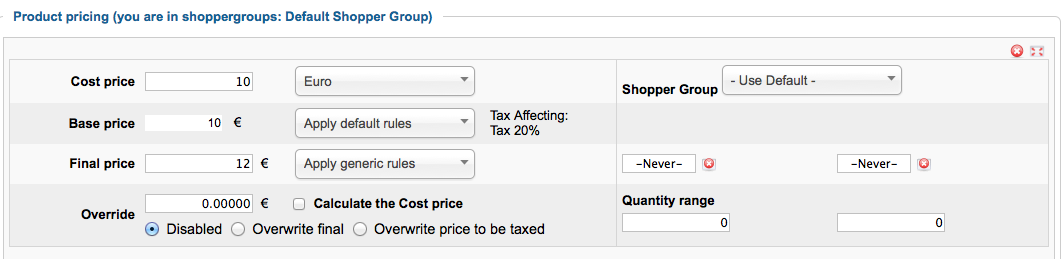
- Cost price / Base price / Final price: enter prices as needed (children can override)
4. Add children: click Add a Child Product, then enter each child’s name and cost price. Click a child name to edit that child (images, description, stock, own price, …).
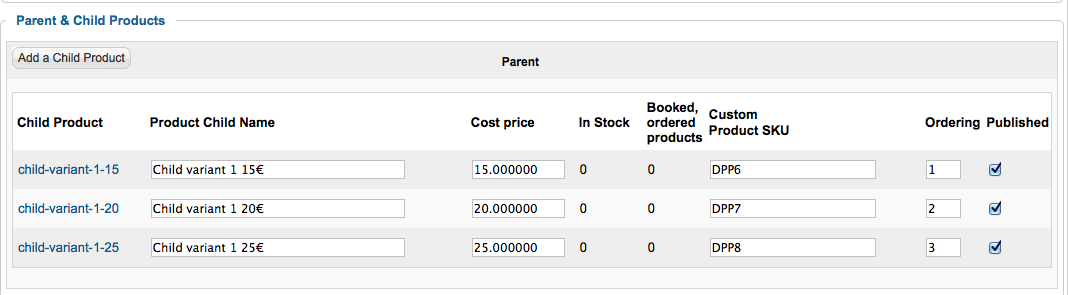
Children can stay sparse: only set what differs (for example the colour image). Shared data is inherited from the parent — see the Technics article linked above.
5. On the parent, open the Custom Fields tab and add the custom field you created:

- Parent not orderable (this tutorial): leave Parent orderable unchecked. The parent cannot be added to the cart; the shopper must choose a child in the dropdown.
- Enable Parent orderable only if you also want the parent itself as a buyable option.
- Enable Display parent as option only if the parent should appear as one entry in the dropdown list.
6. Save the product.
Result on the storefront
Open the parent product page. You should see a dropdown (layout position addtocart) listing the children. With Parent orderable off, “Add to cart” only works after a valid child is selected. Each child can show its own image and price once selected.
Tip: You can also keep a parent unpublished and use it only as a backend product pattern for a family of children. That is a related pattern (sample data often uses names like “PATTERN …”). This tutorial focuses on a published parent page with a non-orderable parent and orderable children via the cart variant field.
